About

Wednesday, March 31, 2021

Nailing That Cool Dissolve Transition

We’re going to create an impressive transition effect between images that’s, dare I say, very simple to implement and apply to any site. We’ll be using the kampos library because it’s very good at doing exactly what we need. We’ll also explore a few possible ways to tweak the result so that you can make it unique for your needs and adjust it to the experience and impression you’re creating.

Take one look at the Awwwards Transitions collection and you’ll get a sense of how popular it is to do immersive effects, like turning one media item into another. Many of those examples use WebGL for the job. Another thing they have in common is the use of texture mapping for either a displacement or dissolve effect (or both).

To make these effects, you need the two media sources you want to transition from and to, plus one more that is the map, or a grid of values for each pixel, that determines when and how much the media flips from one image to the next. That map can be a ready-made image, or a <canvas> that’s drawn upon, say, noise. Using a dissolve transition effect by applying a noise as a map is definitely one of those things that can boost that immersive web experience. That’s what we’re after.

Setting up the scene

Before we can get to the heavy machinery, we need a simple DOM scene. Two images (or videos, if you prefer), and the minimum amount of JavaScript to make sure they’re loaded and ready for manipulation.

<main>
  <section>
    <figure>
      <canvas id="target">
        <img id="source-from" src="path/to/first.jpg" alt="My first image" />
        <img id="source-to" data-src="path/to/second.jpg" alt="My second image" />
      </canvas>
    <figure>
  </section>
</main>

This will give us some minimal DOM to work with and display our scene. The stage is ready; now let’s invite in our main actors, the two images:

// Notify when our images are ready
function loadImage (src) {
  return new Promise(resolve => {
    const img = new Image();
    img.onload = function () {
      resolve(this);
    };
    img.src = src;
  });
}
// Get the image URLs
const imageFromSrc = document.querySelector('#source-from').src;
const imageToSrc = document.querySelector('#source-to').dataset.src;
// Load images  and keep their promises so we know when to start
const promisedImages = [
  loadImage(imageFromSrc),
  loadImage(imageToSrc)
];

Creating the dissolve map

The scene is set, the images are fetched — let’s make some magic! We’ll start by creating the effects we need. First, we create the dissolve map by creating some noise. We’ll use a Classic Perlin noise inside a turbulence effect which kind of stacks noise in different scales, one on top of the other, and renders it onto a <canvas> in grayscale:

const turbulence = kampos.effects.turbulence({ noise: kampos.noise.perlinNoise });

This effect kind of works like the SVG feTurbulence filter effect. There are some good examples of this in “Creating Patterns With SVG Filters” from Bence Szabó.

Second, we set the initial parameters of the turbulence effect. These can be tweaked later for getting the specific desired visuals we might need per case:

// Depending of course on the size of the target canvas
const WIDTH = 854;
const HEIGHT = 480;
const CELL_FACTOR = 2;
const AMPLITUDE = CELL_FACTOR / WIDTH;

turbulence.frequency = {x: AMPLITUDE, y: AMPLITUDE};
turbulence.octaves = 1;
turbulence.isFractal = true;

This code gives us a nice liquid-like, or blobby, noise texture. The resulting transition looks like the first image is sinking into the second image. The CELL_FACTOR value can be increased to create a more dense texture with smaller blobs, while the octaves=1 is what’s keeping the noise blobby. Notice we also normalize the amplitude to at least the larger side of the media, so that texture is stretched nicely across our image.

Next we render the dissolve map. In order to be able to see what we got, we’ll use the canvas that’s already in the DOM, just for now:

const mapTarget = document.querySelector('#target'); // instead of document.createElement('canvas');
mapTarget.width = WIDTH;
mapTarget.height = HEIGHT;

const dissolveMap = new kampos.Kampos({
  target: mapTarget,
  effects: [turbulence],
  noSource: true
});
dissolveMap.draw();

Intermission

We are going to pause here and examine how changing the parameters above affects the visual results. Now, let’s tweak some of the noise configurations to get something that’s more smoke-like, rather than liquid-like, say:

const CELL_FACTOR = 4; // instead of 2

And also this:

turbulence.octaves = 8; // instead of 1

Now we have a more a dense pattern with eight levels (instead of one) superimposed, giving much more detail:

Fantastic! Now back to the original values, and onto our main feature…

Creating the transition

It’s time to create the transition effect:

const dissolve = kampos.transitions.dissolve();
dissolve.map = mapTarget;
dissolve.high = 0.03; // for liquid-like effect

Notice the above value for high? This is important for getting that liquid-like results. The transition uses a step function to determine whether to show the first or second media. During that step, the transition is done smoothly so that we get soft edges rather than jagged ones. However, we keep the low edge of the step at 0.0 (the default). You can imagine a transition from 0.0 to 0.03 is very abrupt, resulting in a rapid change from one media to the next. Think of it as clipping.

On the other hand, if the range was 0.0 to 0.5, we’d get a wider range of “transparency,” or a mix of the two images — like we would get with partial opacity — and we’ll get a smoke-like or “cloudy” effect. We’ll try that one in just a moment.

Before we continue, we must remember to replace the canvas we got from the document with a new one we create off the DOM, like so:

const mapTarget = document.createElement('canvas');

Plug it in, and… action!

We’re almost there! Let’s create our compositor instance:

const target = document.querySelector(‘#target’);
const hippo = new kampos.Kampos({target, effects: [dissolve]});

And finally, get the images and play the transition:

Promise.all(promisedImages).then(([fromImage, toImage]) => {
  hippo.setSource({media: fromImage, width, height});
  dissolve.to = toImage;
  hippo.play(time => {
    // a sin() to play in a loop
    dissolve.progress = Math.abs(Math.sin(time * 4e-4)); // multiply time by a factor to slow it down a bit
  });
});

Sweet!

Special effects

OK, we got that blobby goodness. We can try playing a bit with the parameters to get a whole different result. For example, maybe something more smoke-like:

const CELL_FACTOR = 4;
turbulence.octaves = 8;

And for a smoother transition, we’ll raise the high edge of the transition’s step function:

dissolve.high = 0.3;

Now we have this:

Extra special effects

And, for our last plot twist, let’s also animate the noise itself! First, we need to make sure kampos will update the dissolve map texture on every frame, which is something it doesn’t do by default:

dissolve.textures[1].update = true;

Then, on each frame, we want to advance the turbulence time property, and redraw it. We’ll also slow down the transition so we can see the noise changing while the transition takes place:

hippo.play(time => {
  turbulence.time = time * 2;
  dissolveMap.draw();
  // Notice that the time factor is smaller here
  dissolve.progress = Math.abs(Math.sin(time * 2e-4));
});

And we get this:

That’s it!

Exit… stage right

This is just one example of what we can do with kampos for media transitions. It’s up to you now to mix the ingredients to get the most mileage out of it. Here are some ideas to get you going:

  • Transition between site/section backgrounds
  • Transition between backgrounds in an image carousel
  • Change background in reaction to either a click or hover
  • Remove a custom poster image from a video when it starts playing

Whatever you do, be sure to give us a shout about it in the comments.


The post Nailing That Cool Dissolve Transition appeared first on CSS-Tricks.

You can support CSS-Tricks by being an MVP Supporter.


source https://css-tricks.com/nailing-that-cool-dissolve-transition/

This Web Site is a Tech Talk

This literal tech talk (YouTube video embedded in there) by Zach Leatherman is a good time. The talk is sprinkled with fun trickery, so I’m just taking notes on some on it here:

  • I have no idea how he pulled off the “bang on the keyboard and get perfect code” thing, but it reminds me of Jake Albaugh’s “Self-Coding” Pens.
  • Adding contenteditable on the <body> makes the whole page editable! Did you know document.designMode = "on" does the same thing in JavaScript? (More on making DevTools a design tool.)
  • There’s a short bit where the typing happens in two elements at once. CodePen supports that! Just CMD + click into the editor where you want another one to be, or make it part of a snippet.
  • System fonts are nice. I like how easy they are to invoke with system-ui. Firefox doesn’t seem to support that, so I guess we need the whole stack. I wonder how close we are to just needing that one value. Iain Bean has more on this in his “System fonts don’t have to be ugly” post.
  • box-decoration-break is a nice little touch for “inline headers.” The use of @supports here makes great sense as it’s not just that one property in use, but several. So, in a non-support situation, you’d want to apply none of it.
  • Slapping a <progress> in some <li> elements to compare rendering strategies is a neat way to get some perfect UI without even a line of CSS.
  • Making 11ty do syntax highlighting during the build process is very cool. I still use Prism.js on this site, which does a great job, but I do it client-side. I really like how this 11ty plugin is still Prism under the hood, but just happens when the page is built. I’d love to get this working here on this WordPress site, which I bet is possible since our code block in the block editor is a custom JavaScript build anyway.
  • In the first bullet point, I wrote that I had no idea how Zach did the “bang on the keyboard and get perfect code” but if you watch the bit about syntax highlighting and keep going, Zach shows it off and it’s a little mind spinning.

I think Zach’s overall point is strong: we should question any Single-Page-App-By-Default website building strategy.

As a spoonful of baby bear porridge here, I’d say I’m a fan of both static site generators and JavaScript frameworks. JavaScript frameworks offer some things that are flat-out good ideas for building digital products: components and state. Sometimes that means that client-side rendering is actually helpful for the interactivity and overall feel of the site, but it’s unfortunate when client-side rendering comes along for the ride by default instead of as a considered choice.

Direct Link to Article — Permalink


The post This Web Site is a Tech Talk appeared first on CSS-Tricks.

You can support CSS-Tricks by being an MVP Supporter.


source https://www.zachleat.com/web/this-website-is-a-tech-talk/

HTML Inputs and Labels: A Love Story

Most inputs have something in common — they are happiest with a companion label! And the happiness doesn’t stop there. Forms with proper inputs and labels are much easier for people to use and that makes people happy too.

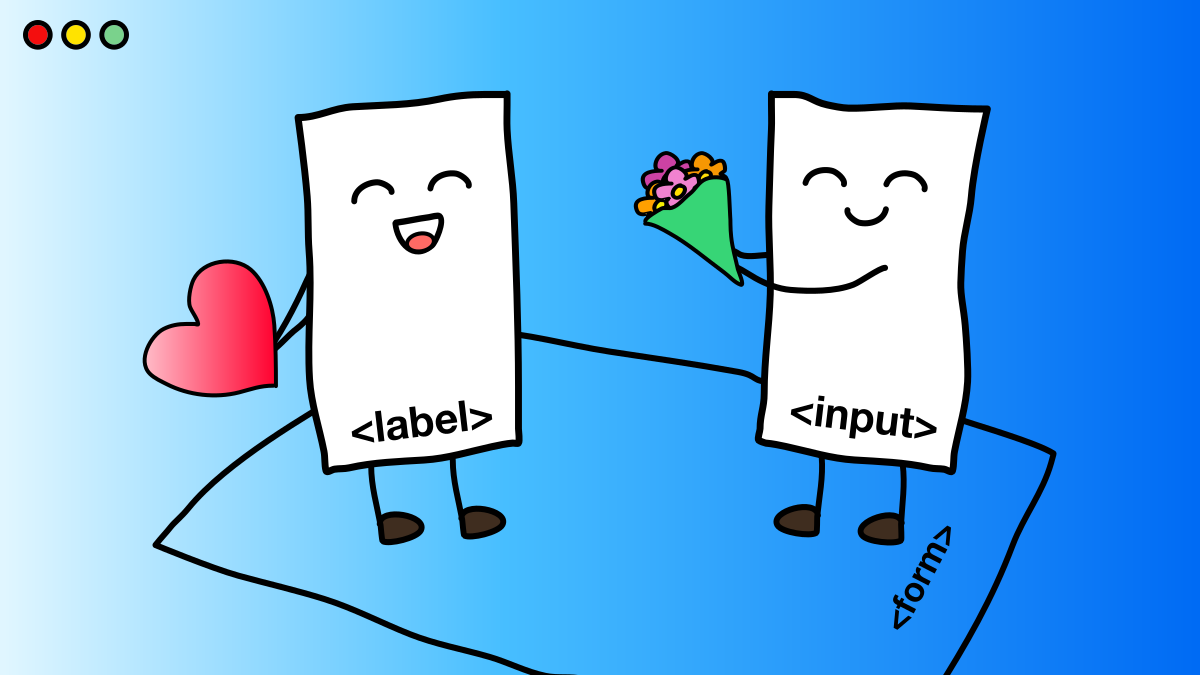
A happy label and input pair

In this post, I want to focus on situations where the lack of a semantic label and input combination makes it much harder for all sorts of people to complete forms. Since millions of people’s livelihoods rely on forms, let’s get into the best tips I know for creating a fulfilling and harmonious relationship between an input and a label.

Content warning: In this post are themes of love and relationships.

The love story starts here! Let’s cover the basics for creating happy labels and inputs.

How to pair a label and an input

There are two ways to pair a label and an input. One is by wrapping the input in a label (implicit), and the other is by adding a for attribute to the label and an id to the input (explicit).

Think of an implicit label as hugging an input, and an explicit label as standing next to an input and holding its hand.

<label> 
  Name:
  <input type="text" name="name" />
</label>

An explicit label’s for attribute value must match its input’s id value. For example, if for has a value of name, then id should also have a value of name.

<label for="name">Name: </label>
<input type="text" id="name" name="name" />

Unfortunately, an implicit label is not handled correctly by all assistive technologies, even if for and id attributes are used. Therefore, it is always the best idea to use an explicit label instead of an implicit label.

<!-- IMPLICIT LABEL (not recommended for use) - the label wraps the input. -->
<label> 
  Name:
  <input type="text" name="name" />
</label>

<!-- EXPLICIT LABEL (recommended for use) - the label is connected to an input via "for" and "id" -->
<label for="explicit-label-name">Name: </label>
<input type="text" id="explicit-label-name" name="name" />

Each separate input element should only be paired with one label. And a label should only be paired with one input. Yes, inputs and labels are monogamous. ♥️

Note: There’s one sort of exception to this rule: when we’re working with a group of inputs, say several radio buttons or checkboxes. In these cases, a <legend> element is used to group certain input elements, such as radio buttons, and serves as the accessible label for the entire group.

Not all inputs need labels

An input with a type="submit" or type="button" does not need a label — the value attribute acts as the accessible label text instead. An input with type="hidden" is also fine without a label. But all other inputs, including <textarea> and <select> elements, are happiest with a label companion.

What goes in a label

The content that goes inside of a label should:

  • Describe its companion input. A label wants to show everyone that it belongs with its input partner.
  • Be visible. A label can be clicked or tapped to focus its input. The extra space it provides to interact with the input is beneficial because it increases the tap or click target. We’ll go into that more in just a bit.
  • Only contain plain text. Don’t add elements like headings or links. Again, we’ll go into the “why” behind this further on down.

One useful thing you can do with the content in a label is add formatting hints. For example, the label for <input type="date" id="date"> will be <label for="date"> as we’d expect. But then we can provide a hint for the user that the date needs to be entered in a specific format, say DD-DD-YYYY, in the form of a <span> between the label and input that specifies that requirement. The hint not only specifies the date format, but has an id value that corresponds to an aria-describedby attribute on the input.

<!-- Describes what the input is for - should be plain text only -->
<label for="date">Start date</label>
<!-- Describes additional information, usually about formatting -->
<span id="date-format">(DD-MM-YYYY):</span>
<input type="date" id="date" aria-describedby="date-format" min="2021-03-01" max="2031-01-01" />

This way, we get the benefit of a clear label that describes what the input is for, and a bonus hint to the user that the input needs to be entered in a specific format.

Best practices for a healthy relationship

The following tips go beyond the basics to explain how to make sure a label and input are as happy as can be.

Do: Add a label in the right place

There is a WCAG success criterion that states the visual order of a page should follow the order in which elements appear in the DOM. That’s because:

A user with low vision who uses a screen magnifier in combination with a screen reader may be confused when the reading order appears to skip around on the screen. A keyboard user may have trouble predicting where focus will go next when the source order does not match the visual order.

Think about it. If we have some standard HTML where the label comes before the input:

<label for="orange">Orange</label>
<input type="checkbox" id="orange" name="orange">

That places the label before the input in the DOM. But now let’s say our label and form are inside a flexible container and we use CSS order to reverse things where the input visually comes before the label:

label { order: 2; }
input { order: 1; }

A screen reader user, who is navigating between elements, might expect the input to gain focus before the label because the input comes first visually. But what really happens is the label comes into focus instead. See here for the difference between navigating with a screen reader and a keyboard.

So, we should be mindful of that. It is conventional to place the label on the right-hand side of the input for checkboxes and radio buttons. This can be done by placing the label after the input in the HTML, ensuring the DOM and visual order match.

<form>
  <!-- Checkbox with label on the right -->
  <span>
    <input type="checkbox" id="orange" name="orange">
    <label for="orange">Orange</label>
  </span>
  <!-- Radio button with label on the right -->
  <span>
    <input type="radio" id="banana" name="banana">
    <label for="banana">Banana</label>
  </span>
  <!-- Text input with label on the left -->
  <span>
    <label for="apple">How do you like them apples?</label>
    <input type="text" id="apple" name="apple">
  </span>
</form>

Do: Check inputs with a screen reader

Whether an input is written from scratch or generated with a library, it is a good idea to check your work using a screen reader. This is to make sure that:

  • All relevant attributes exist — especially the matching values of the for and id attributes.
  • The DOM matches the visual order.
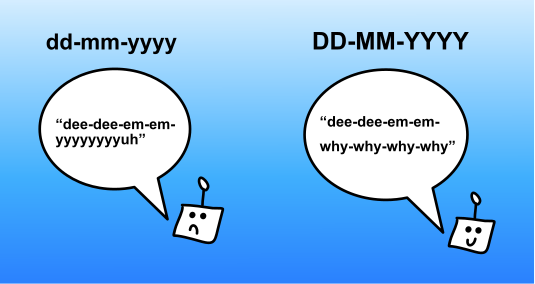
  • The label text sounds clear. For example, “dd-mm-yyyy” is read out differently to its uppercase equivalent (DD-MM-YYYY).
Screen reader reading out a lower case and upper case date input hint.
Just because the letters are the same doesn’t mean that they get read the same way by a screen reader.

Over the last few years, I have used JavaScript libraries, like downshift, to build complex form elements such as autocomplete or comboboxes on top of native HTML ones, like inputs or selects. Most libraries make these complex elements accessible by adding ARIA attributes with JavaScript.

However, the benefits of native HTML elements enhanced using JavaScript are totally lost if JavaScript is broken or disabled, making them inaccessible. So check for this and provide a server-rendered, no-JavaScript alternative as a safe fallback.

Check out these basic form tests to determine how an input and its companion label or legend should be written and announced by different screen readers.

Do: Make the label visible

Connecting a label and an input is important, but just as important is keeping the label visible. Clicking or tapping a visible label focuses its input partner. This is a native HTML behavior that benefits a huge number of people.

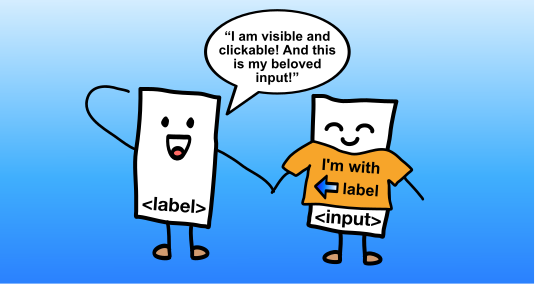
Imagine a label wanting to proudly show its association with an input:

A visible happy label proudly showing off its input partner.
A label really wants to show off its input arm candy. 💪🍬

That said, there are going to be times when a design calls for a hidden label. So, if a label must be hidden, it is crucial to do it in an accessible way. A common mistake is to use display: none or visibility: hidden to hide a label. These CSS display properties completely hide an element — not only visually but also from screen readers.

Consider using the following code to visually hide labels:

/* For non-natively-focusable elements. For natively focusable elements */
/* Use .visually-hidden:not(:focus):not(:active) */
.visually-hidden {
  border-width: 0 !important;
  clip: rect(1px, 1px, 1px, 1px) !important;
  height: 1px !important;
  overflow: hidden !important;
  padding: 0 !important;
  position: absolute !important;
  white-space: nowrap !important;
  width: 1px !important;
}

Kitty Giraudel explains in depth how to hide content responsibly.

What to Avoid

To preserve and maintain a healthy relationship between inputs and labels, there are some things not to do when pairing them. Let’s get into what those are and how to prevent them.

Don’t: Expect your input to be the same in every browser

There are certain types of inputs that are unsupported In some older desktop browsers. For example, an input that is type="date" isn’t supported in Internet Explorer (IE) 11, or even in Safari 141 (released September 2020). An input like this falls back to type="text". If a date input does not have a clear label, and it automatically falls back to a text input in older browsers, people may get confused.

Don’t: Substitute a label with a placeholder

Here is why a placeholder attribute on an input should not be used in place of a label:

  • Not all screen readers announce placeholders.
  • The value of a placeholder is in danger of being cut-off on smaller devices, or when a page is translated in the browser. In contrast, the text content of a label can easily wrap onto a new line.
  • Just because a developer can see the pale grey placeholder text on their large retina screen, in a well-lit room, in a distraction-free environment, doesn’t mean everyone else can. A placeholder can make even those with good vision scrunch their eyes up and eventually give up on a form.
An input on a mobile device where the placeholder text is cut off.
Make sure this is somewhere I can what? It’s hard to tell when the placeholder gets cut off like that.
An input where the translated placeholder is cut off.
Work on a multi-lingual site? A translated placeholder can get cut off even though the English translation is just fine. In this case, the translated placeholder should read “Durchsuchen Sie die Dokumentation.”
  • Once a character is entered into an input, its placeholder becomes invisible — both visually and to screen readers. If someone has to back-track to review information they’ve entered in a form, they’d have to delete what was entered just to see the placeholder again.
  • The placeholder attribute is not supported in IE 9 and below, and disappears when an input is focused in IE 11. Another thing to note: the placeholder color is unable to be customized with CSS in IE 11.

Placeholders are like the friend that shows up when everything is perfect, but disappears when you need them most. Pair up an input with a nice, high-contrast label instead. Labels are not flaky and are loyal to inputs 100% of the time.

The Nielsen Norman Group has an in-depth article that explains why placeholders in form fields are harmful.

Don’t: Substitute a label with another attribute or element

When no label is present, some screen readers will look for adjacent text and announce that instead. This is a hit-and-miss approach because it’s possible that a screen reader won’t find any text to announce.

The below code sample comes from a real website. The label has been substituted with a <span> element that is not semantically connected to the input.

<div>
  <span>Card number</span>
  <div>
    <input type="text" value="" id="cardNumber" name="cardNumber" maxlength="40">
  </div>
</div>

The above code should be re-written to ensure accessibility by replacing the span with a label with for="cardNumber" on it. This is by far the most simple and robust solution that benefits the most people.

While a label could be substituted with a span that has an id with a value matching the input’s aria-labelledby attribute, people won’t be able to click the span to focus the input in the same way a label allows. It is always best to harness the power of native HTML elements instead of re-inventing them. The love story between native input and label elements doesn’t need to be re-written! It’s great as-is.

Don’t: Put interactive elements inside labels

Only plain text should be included inside a label. Avoid inserting things such as headings, or interactive elements such as links. Not all screen readers will announce a label correctly if it contains something other than plain text. Also, if someone wants to focus an input by clicking its label, but that label contains a link, they may click the link by mistake.

<form>
  <div>
    <!-- Don't do this -->
    <input type="checkbox" id="t-and-c" name="name" />
    <label for="t-and-c">I accept the <a href="https://link.com">terms and conditions</a></label>
  </div>
  <div>
    <!-- Try this -->
    <input type="checkbox" id="t-and-c2" name="name" />
    <label for="t-and-c2">I accept the terms and conditions.</label>
    <span>Read <a href="https://link.com">terms and conditions</a></span>
  </div>
</form>

Real-life examples

I always find that real-life examples help me to properly understand something. I searched the web and found examples of labels and inputs from a popular component library and website. Below, I explain where the elements fall short and how they can be improved to ensure a better pairing.

Component library: Material

MaterialUI is a React component library based on Google’s design system. It includes a text input component with a floating label pattern that has become a popular go-to for many designers and developers:

The floating label pattern starts with the label in the placeholder position that moves the label to its proper place above the field. The idea is that this achieves a minimal design while solving the issue of placeholders disappearing when typing.

Clicking on the input feels smooth and looks great. But that’s the problem. Its qualities are mostly skin-deep.

At the time of writing this post, some issues I found with this component include:

  • There is no option to have the label outside of the input in order to offer an increased interactive area for focusing the input.
  • There is an option to add a hint like we saw earlier. Unfortunately, the hint is only associated with the input via proximity and not through a matching id and aria-describedby. This means that not all screen readers will be able to associate the helper message with the input.
  • The label is behind the input in the DOM, making the visual order is incorrect.
  • The empty input looks look like it is already filled out, at least as long as it is not active.
  • The label slides up when the input is clicked, making it unsuitable for those who prefer reduced motion.

Adam Silver also explains why float labels are problematic and gets into a detailed critique of Material’s text input design.

Website: Huffpost

The Huffpost website has articles containing a newsletter subscription form:

Huffpost newsletter signup form
This form looks quite nice but could be improved

At the time of writing this blog post, the email input that Huffpost uses could benefit from a number of improvements:

  • The lack of a label means a smaller click or tap target. Instead of a label there is an aria-label attribute on the input.
  • The font size of the placeholder and input values are a tiny 11px, which can be hard to read.
  • The entire input disappears without JavaScript, meaning people have no way to sign up to the newsletter if JavaScript is disabled or broken.

Closing remarks

A surprising number of people struggle to enter information into poorly-constructed inputs. That list includes people with cognitive, motor and physical disabilities, autism spectrum disorders, brain injuries, and poor vision. Other people who struggle include those in a hurry, on a poor connection, on a small device, on an old device, and unfamiliar with digital forms, among many others.

Additionally, there are numerous reasons why JavaScript might break or be switched off in a browser, meaning inputs become dysfunctional or completely inaccessible. There are also people who are fully capable of viewing a web page but who may choose to use a keyboard along with a screen reader.

The message I want to get across is that happy label and input pairs are crucial. It doesn’t matter if your form is beautiful if it is unusable. I can bet that almost everyone would rather fill out an ugly but easy-to-use form rather than a pretty one that causes problems.

Thanks

I want to warmly thank the following people for helping me with this post: Eric Eggert, Adam Silver, Dion Dajka, and Kitty Giraudel. Their combined accessibility knowledge is a force to be reckoned with!

Footnotes

  • 1 The datepicker is actually well-supported in iOS 14 and very nice. One would imagine that a macOS version has got to be on the horizon. ⮑

The post HTML Inputs and Labels: A Love Story appeared first on CSS-Tricks.

You can support CSS-Tricks by being an MVP Supporter.


source https://css-tricks.com/html-inputs-and-labels-a-love-story/

ShopTalk Patreon

Dave and I launched a Patreon for ShopTalk Show. You get two completely priceless things for backing us:

  1. That great feeling you’re supporting the show, which has costs like editing, transcribing, developing, and hosting.
  2. Access to our backer-only Discord.

I think the Discord might be my favorite thing we ever done. Sorry if I’m stoking the FOMO there, but just saying, it’s a good gang. My personal intention is to be helpful in there, but everyone else is so helpful themselves that I’ve actually learned more than I’ve shared.

Direct Link to Article — Permalink


The post ShopTalk Patreon appeared first on CSS-Tricks.

You can support CSS-Tricks by being an MVP Supporter.


source https://www.patreon.com/shoptalkshow

Never Again Forget to Call .execute() in jOOQ

jOOQ’s DSL, like any fluent API, has one big caveat. It’s very easy to forget to call .execute(). And when you do, chances are, you’re going to be staring at your code for minutes, because everything looks perfect:

ctx.insertInto(T)
   .columns(T.A, T.B)
   .values(1, 2);

Staring… staring… staring… Why is it not inserting that row?

“Aaaah, not again!!”

This is how it’s done:

ctx.insertInto(T)
   .columns(T.A, T.B)
   .values(1, 2)
   .execute();

In principle, this kind of mistake can happen with any fluent API. E.g. StringBuilder

sb.append("a").append("b"); // Not consuming the result

Or streams:

Stream.of(1, 2).peek(System.out::println); // Not so much peeking

But it usually doesn’t happen as much, because the difference to jOOQ is that

  • jOOQ’s DML statements (INSERT, UPDATE, DELETE, MERGE) and DDL statements (CREATE, ALTER, DROP, TRUNCATE), and a few other produce a side effect
  • That side effect is the only thing we care about. The result (the update count) is mostly irrelevant

And as such, we don’t care about the result of execute(), which is an int. No one forgets to call fetch() on a jOOQ ResultQuery:

ctx.select(T.A, T.B)
   .from(T); // Well duh

Because without calling fetch() or something similar, we’re not getting any results, and we want the results, just like with the StringBuilder or the Stream. But we don’t want the execute() result.

As such, even we, when writing jOOQ’s integration tests, occasionally forget to call this silly little method.

No more!

When it happened again this week…

… I finally created an issue to think about it: https://github.com/jOOQ/jOOQ/issues/11718. And I created an issue to wonder if JetBrains could do something about it: https://youtrack.jetbrains.com/issue/IDEA-265263

And they already can! Apart from the org.jetbrains.annotations.Contract annotation, which is there for precisely this reason, apparently, it’s also possible to mimick the JSR-305 @CheckReturnValue annotation on every method “whose return value needs to be checked” (i.e. a method that has no side effect, or whose side effect is to mutate only “this“).

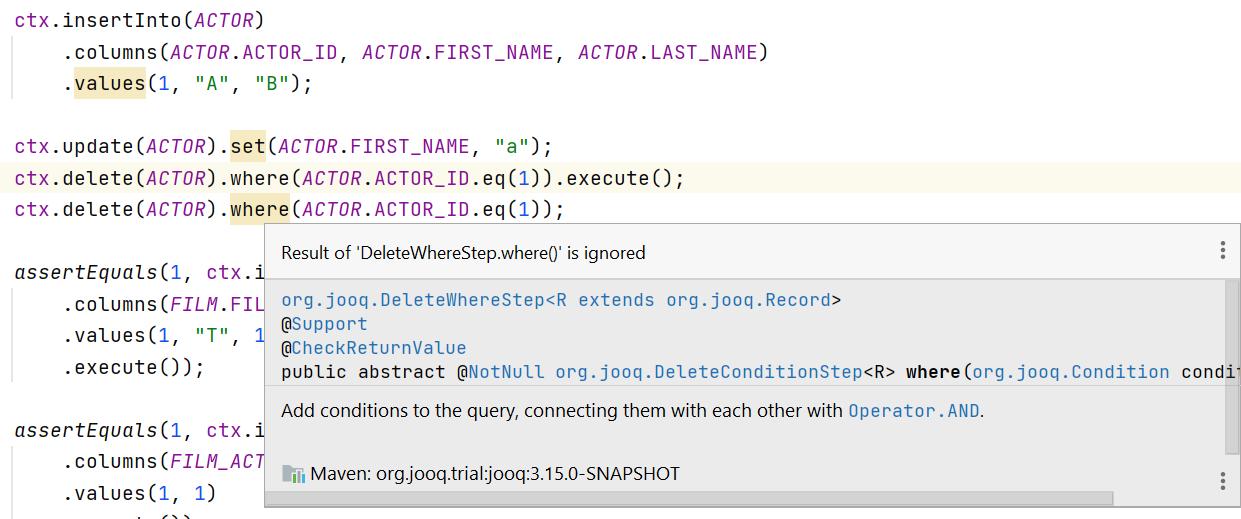
I added this annotation, I added it to all the relevant jOOQ API, which was a bit of yak shaving (https://github.com/jOOQ/jOOQ/commit/f2b529a2305f8c5f8d037776687887a5acd50b11) and voilà

image

As you can see, IntelliJ now warns the user whenever they forget to consume the result of any of jOOQ’s DSL methods (by calling execute(), passing it to some method that consumes it, etc.)

Thanks again to Tagir Valeev from JetBrains for walking me through this and even improving the @Contract annotation, which jOOQ might use in a future version.


from Java, SQL and jOOQ. https://ift.tt/3freabH
via IFTTT